

Webcam Not Working? 14 Fixes for Windows & Mac in 2026
Webcam black screen or not detected? 14 ordered fixes for Windows 11 and Mac, plus Zoom/Teams problems and error codes like 0xA00F4244.
A webcam fails in a small number of recognisable ways: no camera detected, a black screen, video that works in one app but not another, a camera that vanished from Device Manager, an error code like 0xA00F4244, or a glowing LED with no picture. Each symptom points at a different layer — hardware, driver, operating system, browser, or app — and the layers are cheap to rule out in order.
Before you reinstall anything, answer one question: does the operating system see the camera at all, or is the problem confined to one app or website? Open the built-in Camera app (Windows) or Photo Booth (Mac). If either shows a picture, your hardware and driver are fine and the fault is a permission or an app setting. If nothing can see the camera, start with the physical checks in Fix 1.
If your webcam is not working, check the physical privacy shutter or camera key first. On Windows, turn on all three toggles in Settings → Privacy & security → Camera; on Mac, allow your app under System Settings → Privacy & Security → Camera. Then close other video apps and test in the Camera app or Photo Booth before touching drivers.
Want a ten-second check first? Open the free Webcam Test: if you see yourself, the camera works end to end and the problem is the specific app you were using.
Quick navigation (all 14 fixes)
- Find your symptom (30-second triage)
- 1. Privacy shutter, camera switch & USB connection
- 2. Windows 11 camera privacy settings
- 3. macOS camera permissions
- 4. Close apps that are holding the camera
- 5. Test the camera outside the failing app
- 6. Browser site permissions (Chrome, Edge, Firefox, Safari)
- 7. Check whether Windows detects the camera
- 8. Update, roll back, or reinstall the camera driver
- 9. BIOS/UEFI and manufacturer firmware
- 10. Black screen with the LED on
- 11. Zoom, Microsoft Teams & Google Meet
- 12. Error codes: 0xA00F4244, 0xA00F4243, 0x80070005 and others
- 13. Antivirus webcam protection
- 14. When it is probably a hardware problem
- ChromeOS: the short path
- Troubleshooting decision tree
- How to prevent webcam problems
- FAQs
- Sources
Find your symptom — a 30-second triage
The fixes below are ordered by cost, not by likelihood. This table rearranges the same material by symptom: read the first row that matches what you see, then go straight to the fix it names.
| What you see | What it usually means | Start here |
|---|---|---|
| Works in one app, not another | Another app is holding the camera, or the app picked the wrong device | Fix 4, then Fix 11 |
| Works in the Camera app, not in a browser | Site-level browser permission | Fix 6 |
| Works in the browser, not in Zoom/Teams | Desktop-app permission or device selection | Fix 2, Fix 11 |
| Black screen, LED on | Shutter, reservation, or wrong device — rarely hardware | Fix 10 |
| Fails in every app, including the built-in one | Antivirus block, driver, or deeper | Fix 13, then Fix 1 |
| Not detected anywhere | Switch, USB, firmware, or hardware | Fix 1, Fix 7, Fix 9, Fix 14 |
| Error 0xA00F4244 / 0xA00F4243 | "No camera found" vs "camera already in use" | Fix 12 |
One honest limit: a symptom tells you where to look, not what is broken. A camera blocked by antivirus, for example, looks identical to a camera blocked by a permission from inside an app — which is why the table sometimes names two fixes.
Fix 1 — the privacy shutter, camera switch, and USB connection
A closed shutter, a switched-off kill switch, or a half-seated USB plug all produce the same two symptoms: a black frame, or a camera the system reports as absent. No software setting overrides a physically closed shutter, which is why this check comes first.
Ten-second shutter test: shine a phone flashlight straight into the lens from a centimetre away. If the light stops dead against a surface, you are looking at the back of a closed shutter, not glass.
Check every physical control
- Laptop shutter slider — usually above the lens, often showing red or white when closed.
- External webcam cover — a sliding or twisting cap on the camera body.
- Electronic privacy switch — a physical button or slide switch on some laptops that disconnects the camera electrically. Off can mean "no camera installed at all."
- Keyboard camera key — a camera icon on an F-key, often F4, F8, or F10. Press Fn + that key to toggle.
Check the USB connection (external webcams)
- Unplug and reconnect the camera; try a port on the machine itself, not a hub or dock.
- 1080p/4K cameras need real bandwidth: unplug other USB devices and use a USB 3.x port (usually blue or marked SS). A camera that works in one port but drops in another is usually a bandwidth problem, not a dying camera.
- Try a different cable if the camera has a detachable one — worn cables are a common, invisible cause of random disconnects.
- Test the webcam on a second computer if you can.
If the camera works, then drops after sleep or idle time (Windows)
Windows power saving can switch USB devices off to save energy. Two settings are worth changing for an external webcam that fails intermittently:
- USB selective suspend: Control Panel → Power Options → Change plan settings → Change advanced power settings → USB settings → USB selective suspend setting → Disabled.
- Per-device power management: Device Manager → Universal Serial Bus controllers → USB Root Hub → Properties → Power Management → uncheck "Allow the computer to turn off this device to save power".
Fix 2 — Windows 11 camera privacy settings
Windows gates the camera behind three toggles, and the third is the one that surprises people: an app can be allowed to use the camera and still be blocked, because desktop programs do not get their own row in the list. Microsoft's own troubleshooting page names browsers such as Edge and many conferencing apps such as Teams as desktop apps that depend on this setting.
- Camera accessThe device-wide master switch. If it is off and greyed out, an administrator has to turn it on.
- Let apps access your cameraControls Microsoft Store apps, which are listed individually below the switch.
- Let desktop apps access your cameraControls everything else — typically Chrome, Edge, Teams and the standard Zoom installer — all at once. There is no per-app row.
- Open Start → Settings → Privacy & security → Camera.
- Set Camera access to On.
- Set Let apps access your camera to On.
- Set Let desktop apps access your camera to On.
- Close and reopen the app you were testing. Most apps read this permission once at launch and never look again.
That is the whole of Fix 2 when the built-in Camera app works but Zoom, Teams, or Chrome does not: the desktop-apps toggle is off, and nothing inside the failing app will change that. The Permission Diagnostics check reads the permission states your browser reports for this site without asking for any — if it says the camera is granted but the Webcam Test still shows nothing, the block sits below the browser: the Windows toggles, another app, antivirus, or the driver.
On a managed work or school device you may see "Some settings are managed by your organization." Those toggles are set by policy, so the route is your IT department, not the Settings app.
Fix 3 — camera permissions on macOS
macOS asks for camera access per application, and it does not ask in advance: an app that has never requested the camera stays out of the list until it tries. That is why the list you see depends entirely on which apps you have launched. Apple's own apps such as FaceTime and Photo Booth do not need permission, which is what makes Photo Booth a clean test camera.
- Open Apple menu → System Settings → Privacy & Security → Camera.
- Turn on the toggle for every app you take calls in — Zoom, Teams, Chrome, and Safari each keep a separate entry.
- Restart the app after changing a toggle; macOS re-reads permissions when the process starts.
If an app is missing from the list, make it ask: quit completely with Cmd+Q (closing the window is not quitting), reopen it, trigger the camera, and approve the prompt. Declining once is remembered — the app then appears with its toggle off, which is the state to change.
Also check Screen Time: System Settings → Screen Time → Content & Privacy can enforce camera restrictions across every app at once — worth a look on family or managed Macs.
If the camera fails in every Mac app at once
- Restart the camera service (older macOS on Intel Macs): open Terminal and run
sudo killall VDCAssistant, then reopen your app. This command belongs to older macOS versions — on current releases there is no user-facing camera daemon to kill, and a full restart of the Mac performs the same reset. - Test in Safe Mode (hold Shift while starting an Intel Mac; hold the power button and choose Safe Mode on Apple silicon). A camera that works in Safe Mode but not normally is being blocked by third-party software.
- Camera vanished right after a macOS update? Some users report the built-in camera disappearing from System Information after upgrading. A full restart restores it in many cases; if not, check for a follow-up macOS point update, and use an iPhone via Continuity Camera as a temporary workaround while you wait for the patch.
There is no per-device camera driver to reinstall on a Mac — cameras are driven by the operating system, so skip anything that resembles Fix 8.
Fix 4 — close the other apps holding the camera
A camera is a single-user device: Windows and macOS allow one application at a time to open the capture stream, so the second app gets a black frame, a frozen frame, or nothing — while the first looks perfectly healthy. That makes this the cheapest diagnosis in the article: if the camera works in one app but not another, the hardware is not dead, it is reserved.
- Windows: press Ctrl + Shift + Esc, open Task Manager, and end Zoom, Teams, Discord, Skype, OBS Studio, and any Camera helper process. Check the system tray too — apps hiding there still count as running.
- macOS: open Activity Monitor and quit the same apps. Check the Dock and menu bar — closing a window is not quitting.
- Close browser tabs left on a call; some browsers keep the capture stream open in a tab that never navigated away.
- Remove virtual cameras outright. OBS Virtual Camera, ManyCam, and XSplit sit in the same device list and can occupy the default slot — which is exactly what makes an app show a blank feed while believing it is using your webcam. If you do not use them, uninstall them; if you do, disable them in Device Manager when not needed.
Re-test after each one. The Webcam Test shows the picture the moment the lock is gone, which turns a guess into an observation.
If the microphone is silent in the same call while the video is fine, that is a separate fault — the microphone troubleshooting guide starts there.
Fix 5 — test the camera outside the app that is failing
Testing in a second place costs a minute and splits the problem in half. The built-in Camera app (Windows) and Photo Booth (Mac) open the camera directly, with no app settings and no site permission in the way — anything they show is coming from the operating-system layer.
- Open the Camera app (Start → Camera) or Photo Booth.
- Open the Webcam Test in the same browser and compare — its camera picker lists every camera the browser can see, including virtual ones that often take the default slot. The test runs in your browser and the video is not uploaded (see the privacy policy).
- Note which of the two worked. That one answer decides which half of this article you need.
Compare your result with the symptom map above — it translates each outcome into the fix to start with.
Fix 6 — browser site permissions (Chrome, Edge, Firefox, Safari)
Every browser keeps its own per-site permission and its own default camera. Allowing the camera in the Windows Camera app says nothing about Chrome, and a permission granted to Chrome says nothing about Firefox. The control lives beside the address bar — a site blocked once stays blocked until you change it there.
- Chrome and Edge: click the padlock or tune icon left of the address bar → Site settings → set Camera to Allow → reload. Chrome also keeps a global list at Settings → Privacy and security → Site settings → Camera; check the blocked list if the per-site control changes nothing.
- Firefox: open the padlock → More information → Permissions → set Use the Camera to Allow.
- Safari: Safari → Settings → Websites → Camera → set the site to Allow.
Chrome's global camera page (chrome://settings/content/camera) looks like this. Check the default camera in the dropdown at the top, and the "Not allowed to use your camera" list at the bottom:
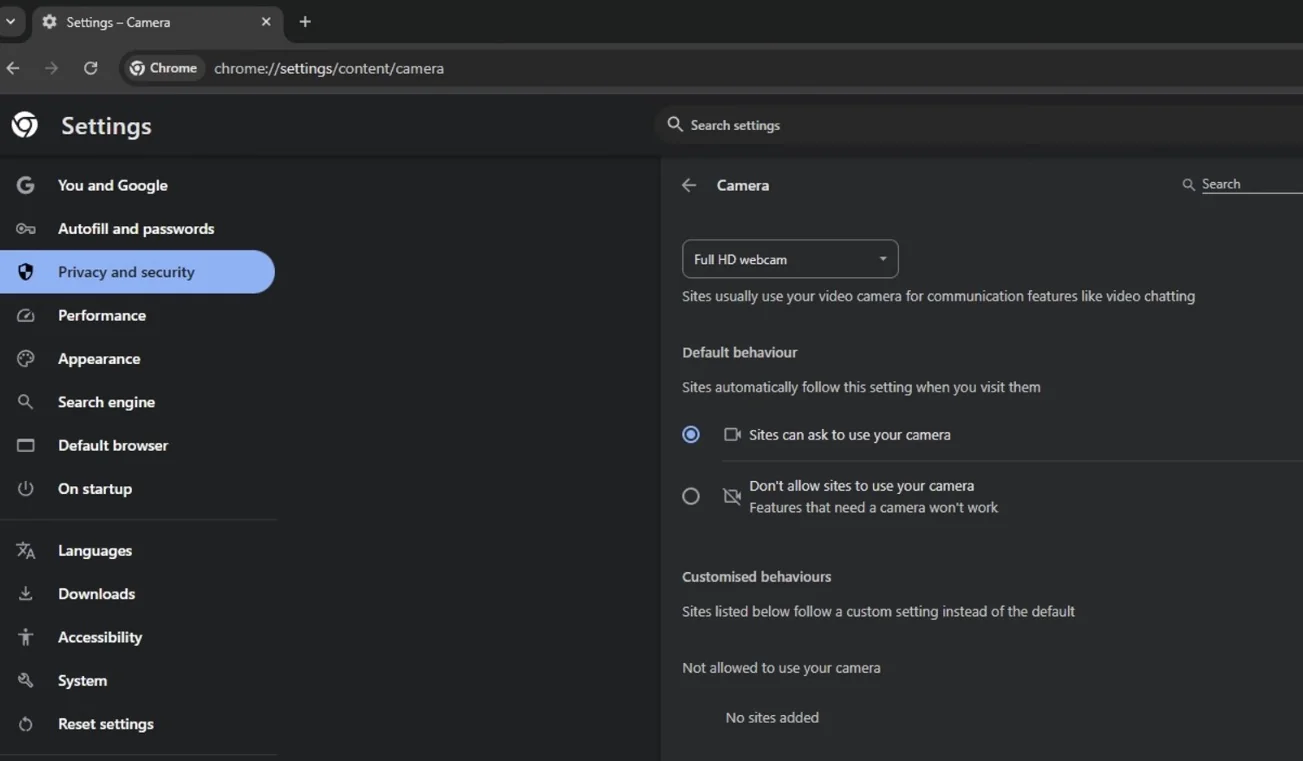
The Permission Diagnostics check shows the state your browser reports for this site — granted, denied, still prompting, or not readable — before you go hunting through menus. It never asks for a permission itself.
Google Meet black screen with permission granted? Users report a recurring conflict with browser hardware acceleration. In Chrome/Edge: Settings → System → turn off "Use graphics acceleration when available" → relaunch the browser, then re-test.
Fix 7 — check whether Windows detects the camera
Device Manager answers a question nothing else can: is Windows enumerating this camera right now? It also reports a fault message in the device's Properties — far more specific than anything a conferencing app will tell you.
- Open Start → Device Manager.
- Expand Cameras, and also look under Imaging devices, Sound, video and game controllers and Universal Serial Bus controllers — a camera can appear there when it has not loaded its own driver. If the camera is listed but disabled, right-click it → Enable device.
- Check Unknown devices — a camera whose driver failed to install frequently lands there.
- Choose Action → Scan for hardware changes. Windows rescans and may reinstall a missing driver on its own.
- Click View → Show hidden devices. Cameras that drop out of the system sometimes linger here, greyed out — a useful clue that Windows saw the camera before and lost it.
- If the camera is listed, right-click it → Properties → read the status on the General tab and write the code down (see Fix 12).
- If it is not listed at all, skip to Fix 1 and Fix 9. A device the system cannot enumerate has not reached the driver stage, and updating a driver for a camera Windows does not know about does nothing.
Fix 8 — update, roll back, or reinstall the camera driver
A driver that has lost track of the camera produces exactly the symptoms above, and it is the first suspect when the fault began after a Windows update or a new install — camera drivers are among the most commonly replaced by an update that was meant to fix something else.
Free first try (Windows 11): run Microsoft's camera troubleshooter — Settings → System → Troubleshoot → Other troubleshooters → Camera → Run.
- Update: right-click the camera in Device Manager → Update driver → Search automatically for drivers.
- Roll back (if the problem started right after an update): Properties → Driver tab → Roll Back Driver. It restores the previous version and is fully reversible. Some drivers do not offer this button — then move to the next step.
- Reinstall: Properties → Driver tab → Uninstall Device, tick "Attempt to remove the driver for this device", then Action → Scan for hardware changes and restart Windows.
- Switch to the generic UVC driver: Update driver → Browse my computer → Let me pick from a list → USB Video Device. Microsoft documents this route for external USB webcams before any manufacturer download. One trade-off: the generic driver may lack extras such as Windows Hello face sign-in.
- Manufacturer driver last: if the maker publishes a Windows 11 driver for your exact model, install it last — it usually carries settings the generic driver lacks.
Older external webcams (e.g., Logitech C920/C270 era): their bundled software dates back years and clashes with current Windows 11 builds. Uninstall the bundled driver suite in Device Manager (tick "Attempt to remove the driver"), unplug, reboot, and let Windows install its native USB Video Device driver.
If the breakage coincides with a specific Windows update, remove the update itself: Settings → Windows Update → Update history → Uninstall updates → remove the most recent one → restart → re-test. This often beats any driver manoeuvre.
Also restart the camera service: press Win + R, type services.msc, find Windows Camera Frame Server, choose Restart. A hung frame server takes the camera down in every app at once while leaving the driver looking healthy.
Never use a third-party "driver updater" utility. They exist to install drivers nobody asked for, and a camera driver is exactly the component they get wrong. On macOS there is no equivalent step — see Fix 3.
Fix 9 — BIOS/UEFI and manufacturer firmware
Some laptops can switch the camera off below Windows entirely, in the firmware setup screen. It is not common, but it is the one thing that explains a camera missing from Device Manager no matter what you change in Windows.
- Restart and press the firmware key repeatedly as the machine powers on: F2 (Dell, most others), F1 (ThinkPad), F10 (HP), Delete (desktops), or Esc.
- Look for a Camera or Integrated Camera entry. Common locations:
- Dell: System Configuration → Miscellaneous Devices
- Lenovo ThinkPad: Security → I/O Port Access → Integrated Camera
- HP business laptops: Advanced → Built-in Device Options
- Set it to Enabled, save, exit, and check Device Manager again.
- On the manufacturer's support page, enter your exact model number and read the release notes of any BIOS/firmware update that mentions camera, webcam, or microphone. Model-specific camera faults — including integrated cameras that the motherboard stops recognising entirely — are frequently fixed there.
Menu names vary by model and BIOS version; if nothing matches, search the maker's manual for "camera" rather than guessing. On business laptops the camera can also be disabled by device-management policy — that route leads to your IT department.
Fix 10 — a black screen with the LED on
An illuminated indicator means the camera is powered and in use. It says nothing about whether the lens is uncovered — a closed shutter over a live sensor looks identical from the outside, and Windows lights the indicator whenever the camera is active, even when nothing reaches the screen.
Work this list in order — each item is cheaper than the next:
- The privacy shutter is closed (Fix 1).
- Another app has the camera open (Fix 4).
- The app selected a different device — OBS Virtual Camera, a second webcam, or an unpaired Bluetooth camera all appear in the same list, and a virtual camera driver can also intercept the stream (Fix 11, Fix 4).
- The browser or the OS is blocking access (Fix 2, Fix 3, Fix 6).
- The driver loads but delivers no frames (Fix 8).
The Webcam Test separates the first cases cleanly: a stream that never starts points at a physical block or a permission; a stream that starts and shows black points at device selection. If the Camera app shows a picture but your meeting app does not, the camera is fine — the fault is the selected device or a permission.
Fix 11 — Zoom, Microsoft Teams, and Google Meet
Each conferencing app keeps its own camera selection, independent of the system default and of every other app. A stale entry for a webcam you unplugged months ago tends to stay selected long after the hardware is gone.
Zoom
- Click your profile picture → Settings → Video & effects (older versions call the tab "Video") and choose the camera from the dropdown; the preview shows what Zoom is receiving. In a meeting, click the arrow next to the Video button → Video settings. Close competing apps first, so the list reflects what is actually free.
- macOS black-screen trick (community-reported): leave Zoom open, launch Photo Booth to force the camera to initialise, then switch back to Zoom. Users report this wakes a camera that Zoom failed to grab on recent macOS versions. It costs twenty seconds and is safe to try.
Microsoft Teams
- Settings → Devices → pick the camera → restart Teams. Teams reads the device list at launch and caches it.
- Persistent black screen or detection failure? On Windows, reset the app: sign out and quit Teams, then Settings → Apps → Installed apps → Microsoft Teams → Advanced options → Repair, then Reset. On Mac, the clean equivalent is to quit Teams, delete the app, and reinstall it fresh. (Classic Teams has been retired — if you are somehow still on it, updating Teams is itself the fix.)
Google Meet
- The ⋮ menu → Settings → Video → choose the camera. Watch for the browser permission prompt at the top of the page — Meet asks for the camera as well as the microphone.
- If video stays black despite a granted permission, try the hardware-acceleration toggle in Fix 6, and make sure OBS or another app is not holding the camera (Fix 4).
If the camera dropdown inside the app is empty, that app cannot enumerate any camera — an empty list is a permission problem (Fix 2 or Fix 3), not a broken camera. And the classic signature test still holds: video working in the built-in Camera app but failing inside the meeting app points here, not at hardware.
Fix 12 — error codes: 0xA00F4244, 0xA00F4243, 0x80070005 and others
Windows reports camera failures as codes, not sentences. The two most common describe very different problems, and reading the meaning is faster than trying every fix in order.
0xA00F4244 — NoCamerasAreAttached
Windows found no camera to hand to the app. Work Fix 1 (shutter, switch, USB), Fix 2 (privacy toggles), Fix 7 (is the device enumerated at all — including hidden devices), and only then Fix 8 (driver) and Fix 9 (firmware). Note that a closed privacy shutter or a disconnected USB plug produces exactly this code — it does not prove a driver fault.
0xA00F4243 (also 0xA00F4289) — camera in use by another app
The camera exists and works; something else has it. Close Zoom, Teams, OBS, Discord, and leftover call tabs, then retry (Fix 4). There is no driver fix for this one.
0x80070005 — access denied
A permission block, not a detection problem: check Fix 2 (Windows camera privacy toggles), then Fix 13 (antivirus webcam protection).
Other codes in Microsoft's camera troubleshooting list
- 0xA00F4246 — camera locked by security software: see Fix 13.
- 0xA00F4292 — camera access restricted by policy: on a work or school device, ask your administrator (see the note in Fix 2).
- 0x800705AA — insufficient system resources: close unnecessary apps, restart, then update the driver (Fix 8).
None of these codes names a failed part. They say where in the chain the attempt stopped — which is why one points at the top of this article and another at the middle.
Fix 13 — antivirus and webcam protection
Several security suites ship a webcam protection feature that prompts before an app may use the camera — and some block silently. It sits above the operating-system permission, so a camera blocked here fails everywhere at once: Camera app, Photo Booth, and every meeting app, with no message explaining why. Windows may report it as error 0xA00F4246. That is worth knowing precisely because the symptom looks identical to a privacy setting that is off — and the two need opposite fixes.
- Find the webcam, camera, or privacy protection section in your security product — Norton, McAfee, Bitdefender, Kaspersky, ESET, or Windows Security itself.
- Look for the app on a blocked list or an ask-before-use list, and allow it.
- Re-test. If it works, leave the protection switched on — allowlisting one app solves the problem without disabling the feature.
Microsoft's own guide suggests pausing security software briefly as a test. If you do, re-enable it immediately after: a camera test is never a reason to run unprotected.
Fix 14 — when it is probably a hardware problem
A camera that appears in no app, is missing from Device Manager after several restarts, and still fails on a second computer is a camera fault. At that point more settings will not help; the honest move is to stop testing and start a warranty claim or a replacement.
The decisive test is a swap: put a known-working camera into this computer, or this camera into another one. If the fault follows the camera, it is the camera. If it stays behind, it is the computer.
One caution: a camera that works on one machine and not another is evidence, not a verdict — pairing state, per-app device selection, and heat-related faults all produce the same reading. What a swap reliably establishes is where to stop looking.
Signs that point at hardware:
- Missing from every app and from Device Manager, after a restart.
- No response on any port, or a response that stops when the cable moves.
- Visible damage to the cable, connector, or hinge on a built-in camera.
- Still fails when connected to a second computer.
If the camera works but the picture was always grainy or dark, the buying guide for webcams in low-light calls covers which sensor and exposure specifications actually help. And a known-good USB camera in a drawer is the cheapest insurance against a critical meeting — this failure is usually sudden.
ChromeOS: the short path
Chromebooks skip most of the list above:
- Open the built-in Camera app. If it works, the fault is a site permission — click the padlock in Chrome's address bar and allow the camera (Fix 6).
- Check Settings → Privacy and security → Site settings → Camera for blocked sites.
- Restart the device — a full restart, not closing the lid.
- Still failing everywhere? Run Settings → About ChromeOS → Diagnostics to test the hardware. On a school device, camera access is often policy-controlled — contact the administrator.
The decision tree, in one place
The whole article in five questions — follow the branch that matches what you see:
- Does the camera appear in Device Manager / System Information? If not: Fix 1 → Fix 7 → Fix 9 → Fix 14. If yes, keep reading.
- Does it work in the built-in Camera app / Photo Booth? If yes, the fault is a permission or an app setting: Fix 2, Fix 3, Fix 6, Fix 11. If no: Fix 8 and Fix 10.
- Does it work in one app but not another? Then it is a reservation or a device-selection problem: Fix 4 and Fix 11.
- Is there an error code? Read it in Fix 12 before trying anything else — the two common codes point at opposite ends of this article.
- Does it fail in every app, including the built-in one? Run Fix 13 first — an antivirus block hides everywhere and looks exactly like a permission problem.
Each branch narrows where to look; none names a failed part. If you would rather run the checks than read about them, the Pre-Call Readiness check in Guided Inspection runs microphone, webcam and speaker tests in about three minutes and builds one printable report. Results stay in your browser's local storage.
How to keep it from coming back
- Keep the camera driver and the machine's firmware current through Windows Update, macOS updates, or the manufacturer's support page — and re-check Fix 2 after every major OS update, because the camera permission list is occasionally rewritten by one.
- Avoid third-party driver updater utilities.
- Keep a known-good USB camera within reach if you take meetings that matter. This failure is usually sudden, and usually minutes before a call.
- Leave antivirus webcam protection enabled; allow the one app you need instead.
- After an OS upgrade, run the Webcam Test once. A camera that has worked for years is the thing most likely to have been changed underneath you — and thirty seconds confirms it.
Frequently asked questions
Why is my webcam light on but the screen is black?
The LED means the camera is powered and in use — not that an image is getting through. The usual causes, in order: a closed privacy shutter, another app holding the camera, the app selecting a different device (like OBS Virtual Camera), or a permission block in the operating system, browser or antivirus. Work through Fix 10.
How do I fix error 0xA00F4244 (NoCamerasAreAttached)?
Error 0xA00F4244 means Windows currently finds no available camera. Check the physical privacy shutter or camera key and the USB connection first, then the Windows camera privacy toggles, then look for the camera in Device Manager (including hidden devices). Only then move to the driver (Fix 8) and firmware (Fix 9). The full sequence is in Fix 12.
Why does my webcam work in the Camera app but not in Zoom?
If the built-in Camera app shows a picture, the hardware and driver are fine. The cause is almost always one of three: Zoom has the wrong camera selected (Settings → Video & effects), the Windows "Let desktop apps access your camera" toggle is off, or another app or virtual camera is holding the device. See Fix 11.
Can antivirus software block my webcam?
Yes. Security products such as Norton, McAfee, Bitdefender, and Kaspersky include webcam protection that can block apps silently, so the camera fails in every app at once. Open the security product's webcam or privacy protection section and allow the app you need instead of disabling the feature. Details in Fix 13.
My camera disappeared after a macOS update. What now?
Restart the Mac fully first, then check System Information → Hardware → Camera to see whether the system still detects the camera. If it is still missing, test in Safe Mode and install any follow-up macOS update (Fix 3). As a temporary workaround, an iPhone works as a webcam through Continuity Camera.
Sources and further reading
- Microsoft Support — Camera doesn't work in Windows (error codes, shutter/switch guidance, the three privacy toggles, driver and UVC routes)
- Apple Mac User Guide — Control access to the camera on Mac (per-app camera access)
- Google Chrome Help — Use your camera and microphone in Chrome (site permissions and default camera)
- Zoom Support — Testing your video (camera selection and preview)
Community-reported workarounds in this guide (the Zoom/Photo Booth camera wake-up, browser hardware acceleration for Meet) reflect current user reports rather than vendor documentation; they are safe to try and cost seconds.
Run the related checks
Webcam Test
Inspect live camera stream, delivered resolution and frame rate — with a mirror mode.
Permission Diagnostics
Read the permission states this browser reports for your site — and see exactly which ones it could not read.
Microphone Test
Live input level meter with pitch detection and voice recorder tabs.
Guide: Buying Guide: Webcams for Low-Light Calls
Why dim rooms make webcams grainy and which sensor and exposure specifications help — with picks for dim rooms, bright rooms, and tight budgets.